noHuman Team 4.10: animated characters and team deletion
noHuman Team 4.10 gives every noHuman an animated character that shows its state, adds team deletion with a 7-day restore, and shows what changed after updates.

Published
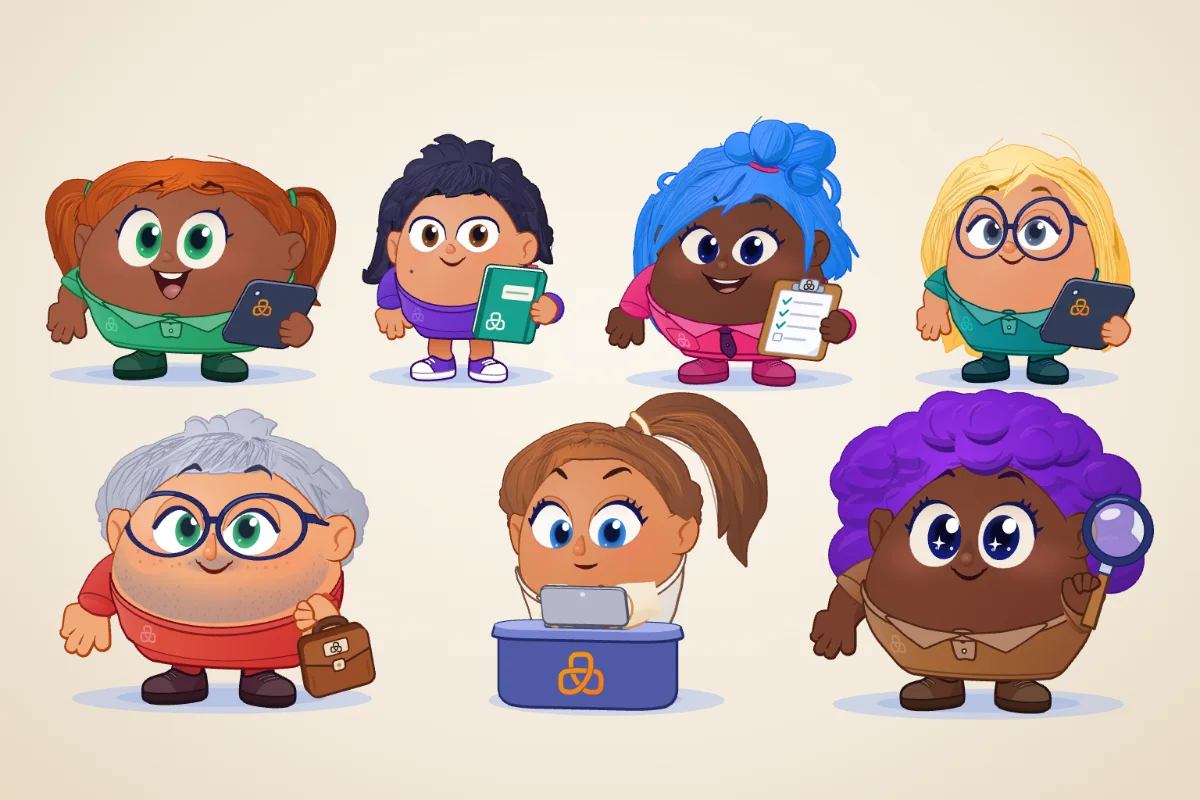
noHuman Team 4.10 turns each noHuman into an animated character that shows what it is doing. You can now delete a team and restore it for 7 days. After an update, the app tells you what changed.
The release supports macOS and Windows. See the install page for the installers available now, or read what's new in 4.10.0.
What does a character show?
A character stands where the round picture used to be: in the side panel, in chats and on team pages. It sits at a desk while the noHuman works and looks sleepy when you stop it. In an open conversation it gets more precise, for example when the noHuman researches something or hands work to a teammate.
A character moves on evidence. If the app loses contact with a noHuman, its character holds still, because a busy figure would claim work the app can't confirm.
Do existing teams need any setup?
No. Update the app and your noHumans have characters on first launch. The app builds each one from the team, the noHuman's place in it and its role, so you have nothing to convert and a noHuman keeps its look between launches.
The role picks clothes and gear. A QA role gets a clipboard or a magnifier, and a writer gets a notebook or a laptop. Skin, body and face stay separate from the job, so two developers look like two different people.
How do you change a character?
Open a noHuman's Settings and choose Avatar. The screen has five sections: Body, Hair, Face, Clothes and Gear. Most options show a small picture of the part. Generate for this role deals a new look in that role's clothes. It's free and uses no AI.
The phone app still shows pictures. If you uploaded one, you'll find it under Picture for the phone app on the same screen.
How much processor time do characters use?
We measured 18 characters on an Intel iMac with a 5K display. Moving, they used about 80% of one core. Held still, they used 7%. Your number depends on your computer and on how many noHumans you have on screen.
To hold them still, turn on Reduce motion in App settings → Appearance. Characters also stop when they scroll out of view.
How does deleting a team work?
Open Your teams and press the trash icon beside a team. The app tells you what happens to that team's working folder, links and template subscription, then asks you to type the team's name.
Its noHumans stop and the team moves to Recently deleted. For the next 7 days you can press Restore, or press Erase now to free the disk space at once. After 7 days the app erases the team on its own.
Check these before you delete:
- Working folders. A folder you chose stays where it is. A working folder inside the team's own folder goes with the team.
- Subscriptions. Deleting a team doesn't cancel its template subscription.
- Restored teams. They start paused, so press Resume when you want them back. They don't rejoin their linked teams.
You can't delete your only team. To start over, use Permanent reset in that team's Advanced settings.
What happens when you update?
The update banner now links to the notes for the new version, so you can read them before you restart. After the update, a short What's new screen opens with the main changes. A new install skips it. To read it again, open App settings → Updates.
Update without resetting your team
Choose Check for Updates in the desktop app or use the install page. Your teams, conversations, Memory and workspace live outside the app bundle and stay saved when you replace it.
Read the 4.10 release notes for the complete list. The monthly subscription includes a 7-day trial; AI provider charges are separate.
Related posts
noHuman Team 4.7: smaller conversations, clearer task progress
noHuman Team 4.7 adds idle conversation summaries, saved task checkpoints and model reasoning choices. Keep long-running work moving and choose when each noHuman makes room.
noHuman Team 4.6: browser switches, and a phone connection built for notifications
In noHuman Team 4.6, each noHuman's Capabilities page explains how it uses its browser and lets you switch its browser tools and behaviour. The phone companion gets a faster, encrypted connection ready for notifications.
noHuman Team 4.5: browsers that say what happened and ask you for help
In noHuman Team 4.5, noHumans keep track of their browser tabs, know whether a failed step went through, ask you with a card when a site needs a person, and can record their browser.